Page 6 of 9
Previewing your Newsletter
Admittedly, this code doesn't look like much. There's an easy way to see what this is going to look like, but first, if this is the first time you've set up this newsletter, you will need to do a couple of things.
- Give it a title. AcyMailing calls this "Subject" but really' it's the name the system will use to keep tabs on this newsletter. For your organization purposes, we recommend something simple like, March 2010 newsletter. Not exactly an exciting title, but it gets the job done.
- Eventually, you will need to assign your new newsletter to a user list, but for now, we recommend not assigning it to anything. This will help prevent you from accidentally sending an unfinished newsletter to your subscribers.
- Click "Apply" in the upper right. This will save the newsletter, but will not close the window.
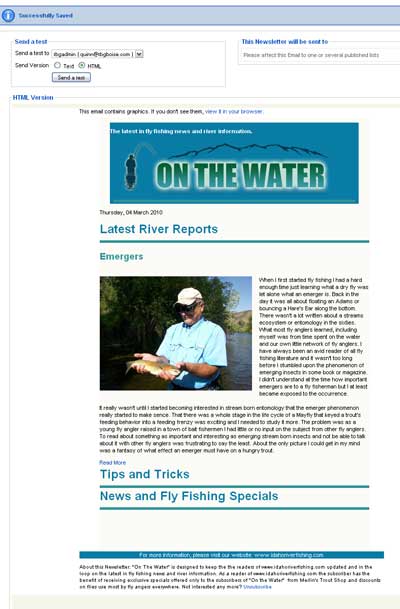
Click the "Preview/Send button in the upper right.

This will update all the tags you've set inside your edit window and will preview the newsletter. (see diagram below) Note, however that all email clients, Thunderbird, Outlook, Gmail, Yahoo. etc. will display your newsletter differently. This preview only gives you an approximation of what the newsletter might look like. Usually, it's close enough.